How to Design Custom Embroidered Patches: A Beginner’s Guide to Perfect Designs
Designing custom embroidered patches might seem intimidating if you’re a beginner—you might worry about choosing the right colors, creating a design that translates well to embroidery, or using the right tools. But the truth is, anyone can design stunning, professional-looking custom patches with a little guidance. Whether you’re creating patches for personal use, your team, or your brand, this beginner-friendly guide will walk you through every step of the design process, so you can create a design you’re proud of before you order custom embroidered patches.
You don’t need to be a professional designer or have advanced art skills to create great custom patch designs. The key is to keep things simple, follow a few basic rules, and leverage the right tools and resources. By the end of this guide, you’ll have all the knowledge you need to design custom patches that look polished, fit your vision, and translate perfectly to embroidery.

1. Start with a Clear Vision (and Keep It Simple)
The first step in designing custom embroidered patches is to define your vision: What’s the purpose of the patch? Who is it for? What message or design do you want to convey? Whether it’s a team logo, a personal symbol, a brand mark, or a fun design for DIY projects, having a clear vision will guide every design decision.
As a beginner, keep your design simple—avoid overly complex patterns, tiny details, or too many colors. Embroidery works best with bold, clean designs: think simple logos, text, or basic shapes. Intricate details (like tiny lines or small text under 6pt font) can blur during production, so stick to larger, bolder elements. For example, a simple team name with a small icon is easier to embroider than a detailed illustration. When you order custom patches, a simple design will also be more cost-effective and ensure a smoother production process.

2. Choose the Right Colors (Follow Embroidery Color Rules)
Color is one of the most important elements of your patch design— it sets the tone, grabs attention, and helps your design stand out. But not all colors work well for embroidery, so it’s important to follow a few basic color rules to ensure your design looks great once stitched.
Beginner color tips: Stick to 3–5 colors (max). Too many colors can make your design look cluttered and increase production costs. Choose high-contrast colors to make your design pop—for example, light text on a dark background or vice versa. Avoid using similar colors (like light blue and sky blue) next to each other, as they’ll blend together in embroidery. Opt for color-fast polyester threads (the most common for custom patches) to ensure your colors stay vibrant for years. Most providers offer a thread color chart, so you can match your design colors to the exact thread colors available. When you order custom embroidered patches, ask for a color proof to ensure your colors translate perfectly to embroidery.

3. Pick the Right Tools (No Professional Software Required)
You don’t need expensive, professional design software to create custom patch designs. There are plenty of beginner-friendly tools that make designing patches easy, even if you have no design experience. The goal is to create a design file that your patch provider can use to create a digital mockup and production file.
Beginner-friendly tools: Canva (free or paid) is perfect for creating simple patch designs—use their templates, icons, and text tools to build your design. Adobe Express (free) is another great option, with easy-to-use design features. If you prefer to draw by hand, sketch your design on paper, then scan it or take a high-quality photo to send to your provider—most providers offer free design optimization to clean up hand-drawn designs. For more advanced designs, GIMP (free) or Adobe Illustrator (paid) work well, but they’re not necessary for beginners. The key is to create a clear, high-resolution design that your provider can work with. When you order custom patches, ask your provider what file formats they accept (vector files like AI, EPS, or PDF are best, but high-res PNG/JPG works too).

4. Consider Embroidery Limitations (Design for Stitching)
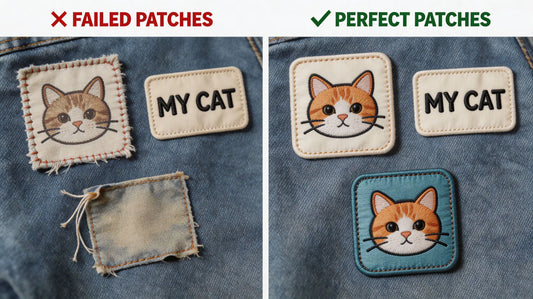
One of the biggest mistakes beginners make is designing a patch that looks great on paper but doesn’t translate well to embroidery. Embroidery has unique limitations— it uses stitching to create designs, so certain elements (like gradients, fine lines, or tiny text) can be difficult to replicate.
Design for embroidery tips: Avoid gradients (embroidery uses solid thread colors, so gradients will look like block colors). Use thick, bold lines (at least 1pt thick) to ensure they’re visible in stitching. Avoid tiny text (stick to 6pt font or larger) to prevent blurring. For text, choose simple, easy-to-read fonts (like Arial, Helvetica, or bold script fonts)—fancy, cursive fonts with thin lines can be hard to embroider. If you’re unsure if your design will work, ask your provider for a free digital mockup—they’ll show you how your design will look once stitched. This step is crucial to avoid mistakes and ensure your custom embroidered patches turn out perfect.

5. Avoid Common Beginner Design Mistakes
Even with the best intentions, beginners often make simple mistakes that can ruin their patch design. By knowing what to avoid, you can save time, money, and frustration.
Common mistakes to avoid: 1. Overcomplicating the design (too many details, colors, or elements). 2. Using tiny text or fine lines that blur in embroidery. 3. Choosing low-contrast colors that blend together. 4. Submitting a low-resolution design file (blurry images lead to blurry patches). 5. Forgetting to consider the patch size (a design that looks great on a 4-inch patch may be too cluttered on a 2-inch patch). 6. Not asking for a digital mockup (this is the best way to catch mistakes before production). When you order custom patches, your provider can help you avoid these mistakes with free design support and mockups.
6. Test Your Design (Use Free Mockups)
Once you’ve created your design, don’t skip the mockup step. A free digital mockup is a lifelike preview of your patch, showing exactly how it will look once stitched—including colors, stitching details, and size. Most reputable providers send mockups within 24 hours, and they offer unlimited revisions, so you can tweak your design until it’s perfect.
Take your time to review the mockup: Check the colors, font, stitching details, and overall design. If you need adjustments (changing a color, tweaking the font, or simplifying a detail), let your provider know. This step is free and ensures you’re happy with your design before production starts. Remember: once production begins, you can’t make changes, so a mockup is your best chance to get your design right. When you order custom embroidered patches, always ask for a free mockup to avoid costly mistakes.
Final Thoughts: Designing Patches Is Easier Than You Think
As a beginner, designing custom embroidered patches doesn’t have to be intimidating. By keeping your design simple, choosing the right colors, using beginner-friendly tools, designing for embroidery limitations, avoiding common mistakes, and testing your design with a mockup, you can create professional-looking patches that fit your vision.
Remember: your patch provider is there to help. Most offer free design optimization, mockups, and support to guide you through the process. You don’t need to be a designer—you just need a clear vision and a willingness to tweak your design until it’s perfect. Now that you have the tools and tips you need, you’re ready to design your custom patches and order custom embroidered patches with confidence.
FAQ
Q: Do I need professional design skills to create custom embroidered patches?
A: No! You don’t need professional design skills or experience. Use beginner-friendly tools like Canva or Adobe Express, or even hand-draw your design and let your provider optimize it for free. The key is to keep your design simple and follow basic color and embroidery rules. When youorder custom embroidered patches, most providers offer free design support to help beginners create great designs.
Q: How many colors should I use in my custom patch design?
A: As a beginner, stick to 3–5 colors (max). Too many colors can make your design look cluttered, increase production costs, and make it harder to embroider. Choose high-contrast colors to make your design pop, and avoid similar colors that blend together.
Q: What file format do I need to submit my patch design?
A: Most providers prefer vector files (AI, EPS, PDF) because they’re high-resolution and easy to scale without losing quality. If you don’t have vector files, high-resolution raster files (PNG, JPG, PSD) work too—just ensure the image is clear and not blurry. Hand-drawn designs (scanned or photographed) are also accepted, and providers can optimize them for free.
Q: Can I use gradients or fine lines in my patch design?
A: It’s best to avoid gradients—embroidery uses solid thread colors, so gradients will translate to block colors. Fine lines (thinner than 1pt) and tiny text (under 6pt font) should also be avoided, as they can blur during embroidery. Stick to thick, bold lines and larger text for the best results.
Q: Is it free to get a digital mockup of my patch design?
A: Yes! Most reputable providers offer free digital mockups within 24 hours of submitting your design. Mockups are lifelike previews of your patch, and you can request unlimited revisions until you’re 100% satisfied. This is a crucial step for beginners to catch mistakes before production. When you order custom patches, always take advantage of free mockups.
Tags:
Previous
Unconventional Uses for Custom Embroidered Patches: Beyond Jackets & Backpacks
Next
The Ultimate Guide to Iron On Patch Application & Long Lasting Fix